The AI assistant
Grafida can talk to a Large Language Model (LLM) about the article you have open: ask it questions, have it proofread or rewrite the text, or generate a draft from a brief.
It is entirely optional. Grafida ships with no AI provider configured and no API key, and every other feature works without one. If you never add a service, the AI buttons never appear in the editor.
What it can and cannot do
The assistant is text only. Grafida does not generate images, and it has no intention of doing so. Article images come from your own Media Manager or your own computer — see Media Manager.
The assistant always works on the article you have open. Its first message carries the article's title and HTML as context, so “make the second section shorter” means something. It is not a general-purpose chatbot bolted onto an editor.
A model that can see — a so-called multimodal or vision model — can also be sent the article's pictures, if you switch that on for the service. See AI Services.
What you need
- An AI service: a provider, an endpoint, a model, and — for a hosted provider — an API key. See AI Services.
- Nothing else. The assistant does not need your Joomla site to be reachable.
Grafida knows about OpenAI, Anthropic, Cohere, DeepSeek, Google, Groq, MiniMax, Mistral, OpenRouter, Perplexity, Scaleway and GitHub Models out of the box, and has two “Custom” entries for anything else that speaks one of the two OpenAI wire formats — which includes local model servers such as LM Studio and Ollama.
The three ways in
Once at least one service is configured, the editor's toolbar grows two buttons.
AI Tools (the drop-down) runs a preconfigured writing tool — Proofread, Friendly Rewrite, Professional Rewrite, Summarise, Generate — against the article. The menu always ends with Custom…, which opens an empty chat for a free-form question.
AI Assistant (the sparkle button) opens the chat panel directly.
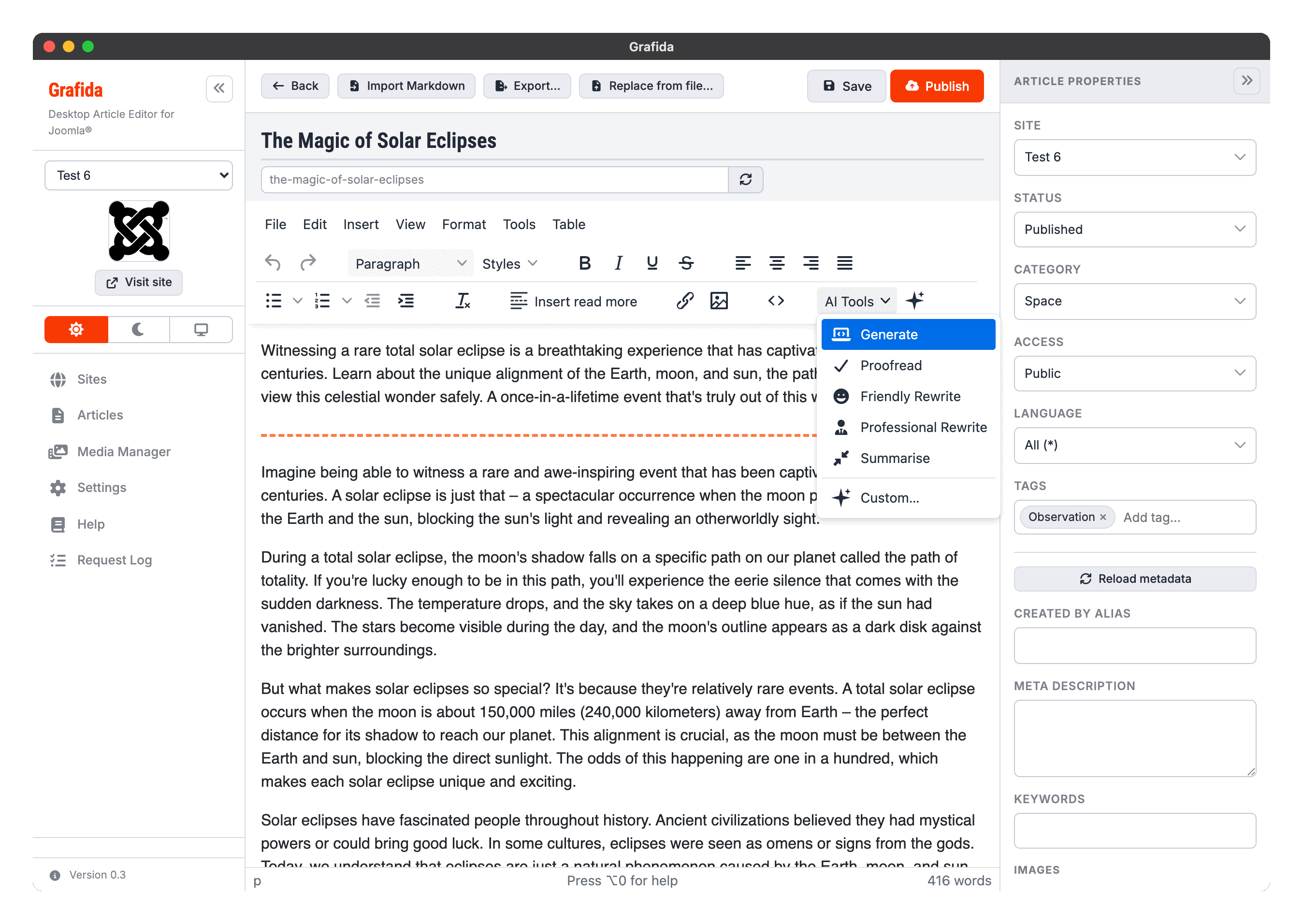
Both are described in Chat. What each tool asks the model to do, and how to change or add tools, is in Tools.
Note
The buttons are added when the editor opens. If you have just configured your first AI service, go back to the article list and open the article again.
Where your text goes
Grafida sends the request straight from your computer to the provider you configured. There is no Akeeba server in the middle, and nothing is sent anywhere unless you press a tool or send a message.
What that means in practice depends entirely on who you point it at. A hosted provider sees your article text under whatever terms you agreed with them. A model running on your own machine or LAN sees nothing that leaves the building.
Important
The API key you enter is stored in your operating system's secret store (see Secrets security), but it is handed to Grafida's own front-end code to make the call. This is a deliberate trade-off on a desktop application — both halves are local code you already trust — and it is the price of watching the reply arrive word by word instead of waiting for it in silence.
Invisible characters in the reply
Models routinely emit characters you cannot see — zero-width spaces, directional marks, tag characters — partly as a deliberate watermark and partly as an artefact of the text they were trained on. Grafida removes them from every reply as it is inserted, and again from the whole article when you publish it, because they are read out by screen readers and break find-in-page. The Normalise AI-generated content setting governs it; see Settings, which also explains why removing them does not, and cannot, discharge your duty to disclose that you used AI.
Privacy, plainly
- Your article text is sent to the provider you chose, when you ask for it.
- Saved chats are stored in Grafida's local database, alongside the article.
- Requests to an AI provider are not written to the Request Log.
- A
.grafidaexport carries the saved chats with the article, so treat an export as containing them.