Articles
The Articles view is where you start and resume your writing. It lists the articles you have on your computer, and the articles that already exist on the site you have selected in the sidebar.
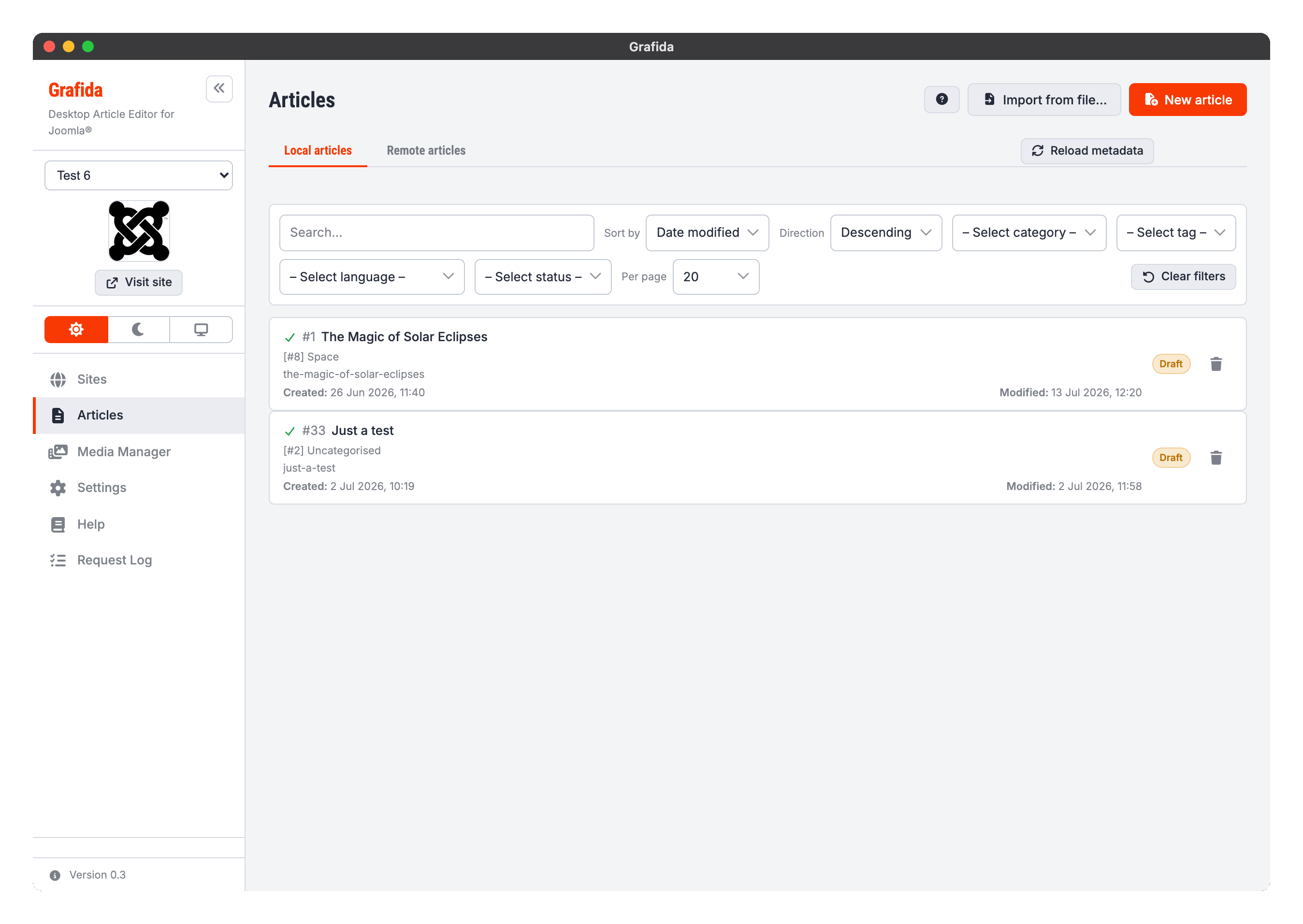
Everything in this view applies to the active site, i.e. the site chosen in the sidebar's drop-down. Switching sites switches the lists.
Local and remote articles
Grafida keeps a local article — a draft — in its own database on your computer. Nothing is sent to your site until you press Publish. That is the entire point of the application: you write off-line, at your own pace, and publish when you are ready.
The view is therefore split into two tabs.
Local articles are the drafts stored on your computer. They are listed even when you have no Internet connection, because reading them needs nothing but Grafida itself.
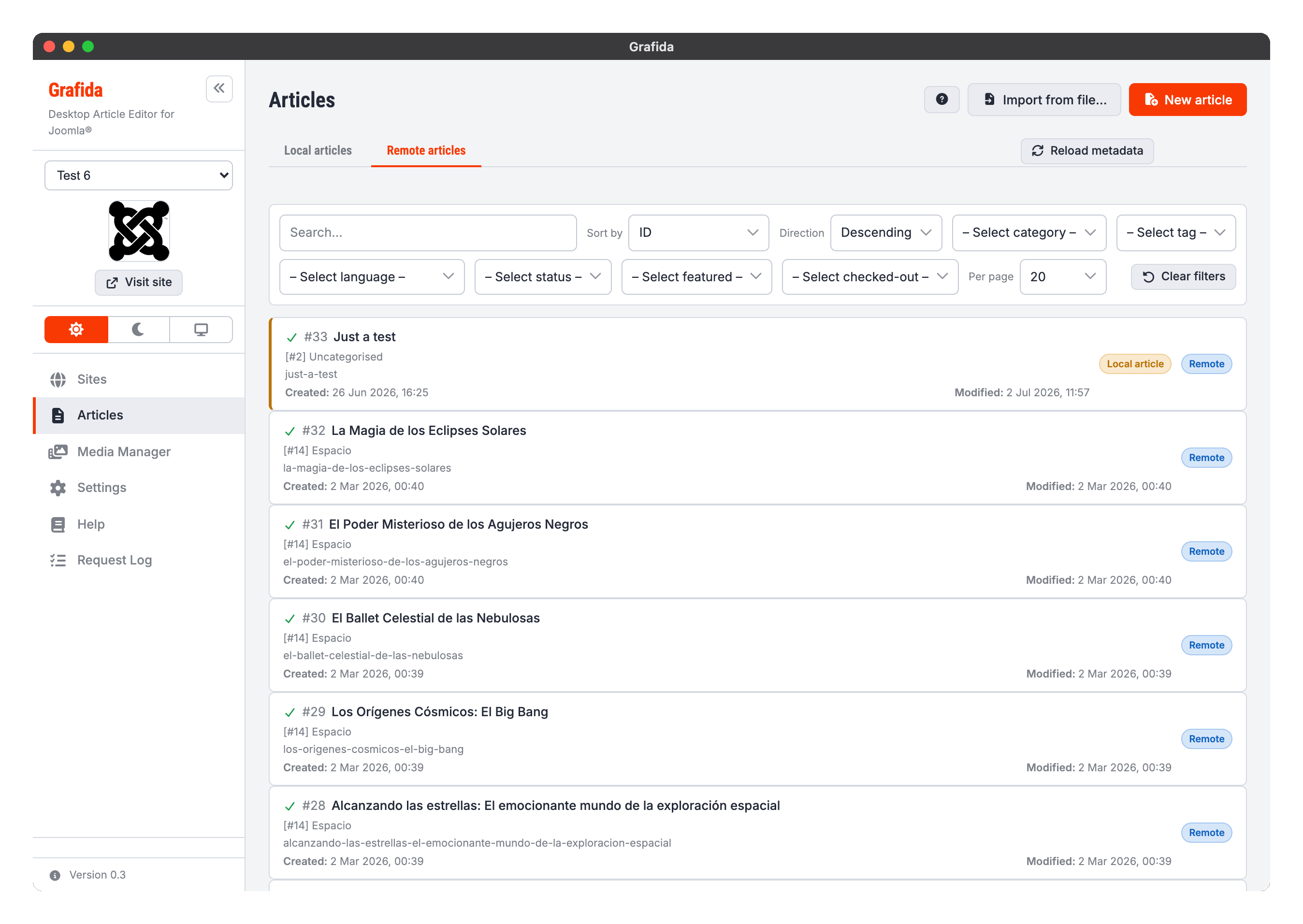
Remote articles are the articles that exist on your site right now. Reading this list needs a working connection to the site.
The two tabs are not two separate worlds. A local article remembers the remote article it was created from, so you can open something published on your site, work on it locally over several days, and publish it back to the same article.
Note
A draft is only written to Grafida's database the first time you press Save. Opening a remote article to read it, then going back, leaves nothing behind on your computer.
The toolbar
Import from file… loads a .grafida file — an article exported from Grafida, possibly from
another computer — as a new local article on the active site. See
Editing Articles for what that format holds.
New article starts a blank local article on the active site.
Tip
Ctrl + N (Windows, Linux) or Cmd + N (macOS) does the same thing from the keyboard, on either tab. It works only in this view — it is deliberately inert everywhere else, so it can never interrupt an article you are editing.
Reload metadata, next to the tab strip, refreshes the categories, tags, access levels, languages and custom fields Grafida has cached for this site, and rebuilds the filter drop-downs from them. Use it after you have added a category or a tag on your site and it is not showing up here yet. If a filter you had selected no longer exists on the site, it is cleared and Grafida tells you so.
Filtering and sorting
Both tabs have the same shape of toolbar: a search box, a sort column and direction, a set of drop-down filters, and a page-size selector. Clear filters resets the lot.
The two tabs filter independently — narrowing the remote list does not narrow the local one — and each remembers its own settings while the application is running.
The Local articles tab searches the title and the alias, and can sort by date modified (the default, so whatever you touched last is at the top), date created, title, category, language or status. All of it happens on your computer, so it is instant and works off-line.
The Remote articles tab asks your site to do the work, which is why it offers everything Joomla's own article list does: sorting by ID, filtering by featured state and by checked-out state, and page-by-page navigation through what may be thousands of articles.
Tip
The Remote articles tab does not offer an author filter, and the Local articles tab does not offer sorting by ID. Neither is an oversight: Grafida has no list of your site's users, and a local article only acquires a Joomla ID once you have published it, so half the list would sort by a value the other half does not have.
Reading a row
Each row tells you the same things in both tabs.
The icon on the left is the article's publishing status, using Joomla's own colours: a green tick for published, a red cross for unpublished, a blue box for archived, and a muted bin for trashed.
The #123 next to the title is the article's ID on your Joomla site. A local article that
has never been published does not have one yet, so it shows none.
Below the title you see the category (with its own ID), the alias — the last part of the article's URL — and the dates the article was created and last modified. On a local article those dates describe your local copy, not the article on the site.
On the right-hand side is a badge saying whether the row is a Draft (local) or Remote.
A remote article you already have a local copy of stays in the remote list, with an extra Local article badge and a coloured edge. Clicking it opens your local copy rather than downloading the article again and throwing your work away.
Opening, creating and deleting
Click any row to open it in the editor.
- A local article opens directly.
- A remote article you have no local copy of is downloaded and opened as a new, unsaved local article.
- A remote article you already have a local copy of opens that copy.
Local rows carry a bin button to delete the local copy.
Caution
Deleting a local article deletes it, its saved AI chats and any images you had pasted into it but not yet published. It does not delete anything on your site. There is no undo.